ERAS HEADSHOT · MYINTEALTH PHOTO UPLOADS
Why does MyIntealth say 1 MB when an ERAS headshot is limited to 150 KB?
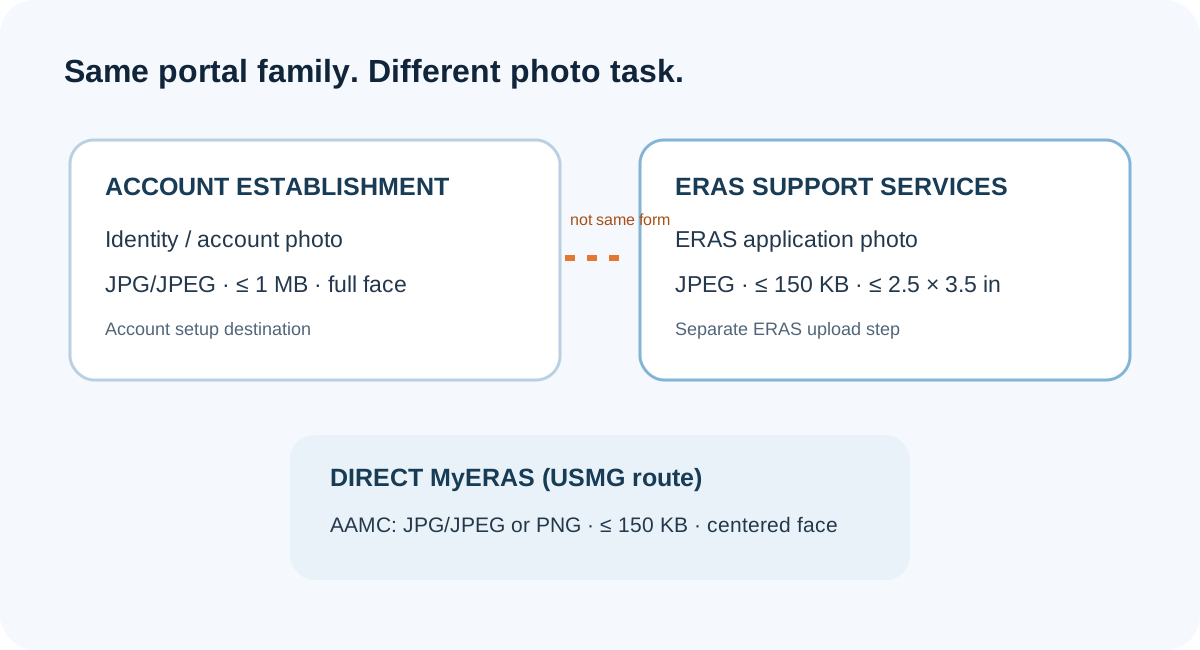
They are separate photo uploads with different purposes. MyIntealth account establishment lists a face photo of 1 MB or less; ECFMG’s ERAS Support Services photo instructions list a separate ERAS image of 150 KB or less and no larger than 2.5 × 3.5 inches. The 1 MB limit is not a replacement for the ERAS photo limit.
Why the two file limits do not conflict
“MyIntealth photo” can refer to more than one form. The account-establishment instructions ask for a photograph to create the MyIntealth account and describe its use on the Intealth Identification Form and other documentation, depending on requested services. The ERAS Support Services page separately describes submitting a photograph for the MyERAS application.
Those pages set requirements for different destinations. A limit printed on an account-creation photo form does not, by itself, define the limit for a later ERAS Support Services upload. Identify the form and its purpose before comparing numbers.
This article compares public instructions. It does not establish how an undocumented portal screen validates, transforms, or reuses one file across forms.
Compare the three published photo contexts
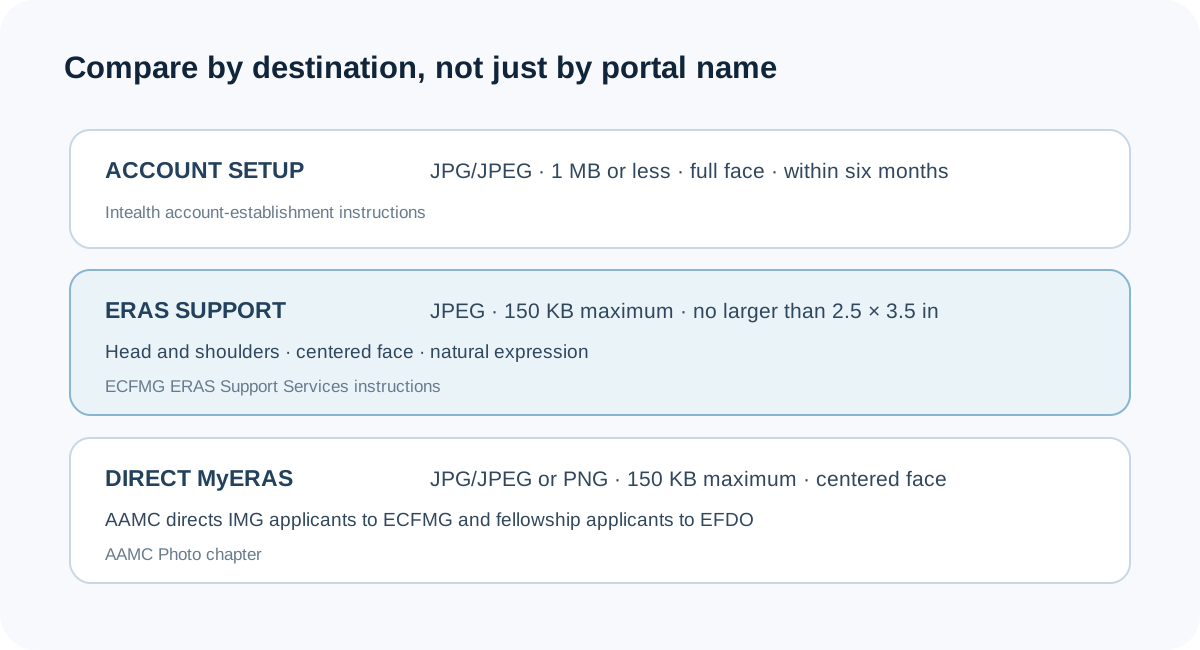
The first two rows are both associated with MyIntealth, but they are not the same task. The third row is the direct MyERAS route described by AAMC for U.S. medical school applicants. Keep the row that matches the upload destination in front of you.
| Upload context | Published purpose and requirements | What not to transfer |
|---|---|---|
| MyIntealth account establishment | Identity/account setup photo: clear front view of the full face, centered, natural expression, color, plain light background, current within six months, JPG/JPEG, 1 MB or less. | Do not treat this page’s 1 MB ceiling as the ERAS Support Services photo limit. |
| MyIntealth → ERAS Support Services | Photo for the ERAS application: clear full-front head-and-shoulders view, centered face, natural expression, eyes open and looking ahead, JPEG, 150 KB maximum, no larger than 2.5 × 3.5 inches. | Do not assume the account-establishment photo’s 1 MB allowance, six-month wording, or full-face-only framing carries over to this ERAS upload. |
| Direct MyERAS upload for USMG applicants | AAMC lists JPG/JPEG or PNG, 150 KB maximum, and a centered face. The AAMC page directs IMG applicants to ECFMG and fellowship applicants to EFDO. | Do not substitute the separate account-establishment checklist for the applicant route assigned by AAMC. |
The comparison uses the wording on the public account-establishment, ECFMG ERAS Support Services, and AAMC Photo pages. A detail omitted from one page is not proof that every portal accepts every variation.
A five-step check before preparing an upload copy
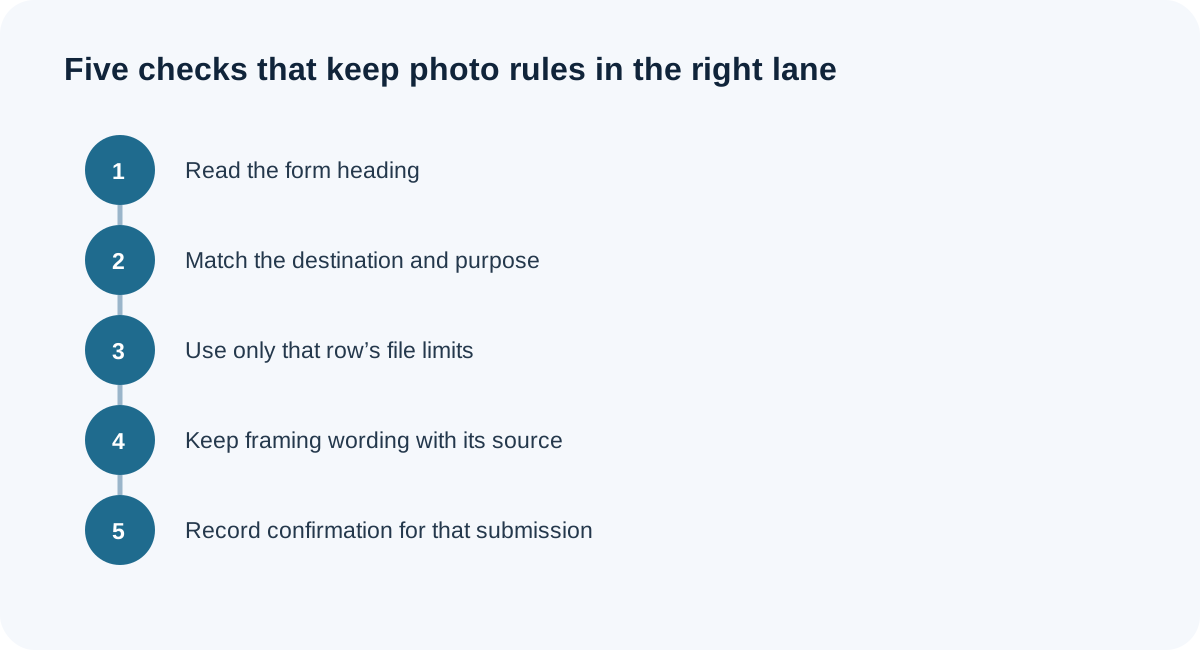
- Read the section heading. Is the form creating a MyIntealth account, submitting an ERAS Support Services photo, or uploading directly in MyERAS?
- Match the recipient. Account establishment, the ERAS application, and a direct MyERAS upload are distinct destinations even if the pages mention the same portal ecosystem.
- Use only that row’s published limits. For the ECFMG ERAS Support Services row, the listed maximum is 150 KB and the image may be no larger than 2.5 × 3.5 inches. For account establishment, the listed maximum is 1 MB and the page says JPG/JPEG.
- Keep route-specific image wording with the route. For example, account establishment says full face only and a plain, light-colored background; ECFMG’s ERAS support page says head and shoulders. Do not merge those descriptions into a new universal rule.
- Record the portal’s result for the correct submission. ECFMG’s ERAS page says a successful upload is confirmed and the photo transmits to MyERAS within 24 hours; availability to programs requires assignment in MyERAS. An account-setup success message is not that ERAS confirmation.
This sequence is a source-reading method built from the labels and steps in the three public documents. It is not a claim that a specific image will pass an account or ERAS portal check.
Keep a separate source record for each photo task
When a portal has several photo-related steps, make one record per form rather than one record per product name such as “MyIntealth.” This is a small evidence-management method: the destination identifies which published rule row applies, while the resulting confirmation identifies which task actually completed.
For each record, capture six fields: the exact page or form heading; the destination described by that page; the official source URL; the stated file type and limit; any framing or date wording; and the confirmation or next step named for that upload. If a field is not stated in the source, leave it marked “not stated” instead of copying a value from a neighboring form.
An illustrative record set would keep “MyIntealth account establishment” separate from “ERAS Support Services photograph.” The first points to the account-establishment page and its account-photo instructions. The second points to ECFMG’s ERAS photo section and its separate technical limits and transfer step. A direct MyERAS upload by a U.S. medical school applicant would be a third record tied to AAMC’s Photo chapter.
This ledger prevents three common category errors: applying a 1 MB ceiling to the ERAS Support Services image; carrying account-setup framing or recency language into a different upload without a source; and treating an account-photo success state as proof that an ERAS photo reached MyERAS or was assigned to programs. It documents what was checked, not whether one image will pass every route.
If one portrait is being prepared for more than one task, compare each saved copy against its own record and preserve each task’s confirmation separately. The public instructions do not say that one submission automatically completes the other.
Questions applicants ask
Can the 1 MB account photo automatically become my ERAS photo?
The account-establishment page describes a photo for setting up a MyIntealth account. The ECFMG ERAS Support Services page has a separate photo-submission step and says that the ERAS photo transmits to MyERAS after successful upload. Do not infer that completing account setup completes the ERAS photo submission.
Does the six-month rule apply to the ERAS Support Services photo?
The reviewed account-establishment page says its account photo must be current within six months. The reviewed ERAS Support Services photo section does not state that same six-month rule. This comparison reports the difference in the public pages; it does not infer a hidden recency check.
Does “MyIntealth” mean the 1 MB rule applies to every upload there?
No. The public ECFMG page for ERAS Support Services provides its own technical specifications. Follow the specifications attached to the actual upload task, not a limit from a different form.
Where does the photo become available to programs?
ECFMG says a successfully submitted ERAS photograph transmits to MyERAS within 24 hours. AAMC says applicants must assign the photo to programs on MyERAS. The public pages describe these as separate steps.
Official sources and boundaries
- Intealth: MyIntealth account-establishment photograph
- ECFMG: ERAS Supporting Documents photograph and MyIntealth upload process
- AAMC: MyERAS Photo instructions
Public applicant discussions can show which steps are confusing, but replies are not official policy. The checked discussion threads are listed in the source register for this page.