ERAS HEADSHOT / FILE FORMAT
ERAS headshot says JPG: is the image really a JPEG?
Changing a filename from .png or .heic to .jpg does not convert the image. Export a new file in a format accepted by the portal that receives it, then verify that copy. AAMC lists JPG/JPEG or PNG for direct MyERAS; ECFMG’s MyIntealth IMG route lists JPEG. Follow the current instructions for your route.
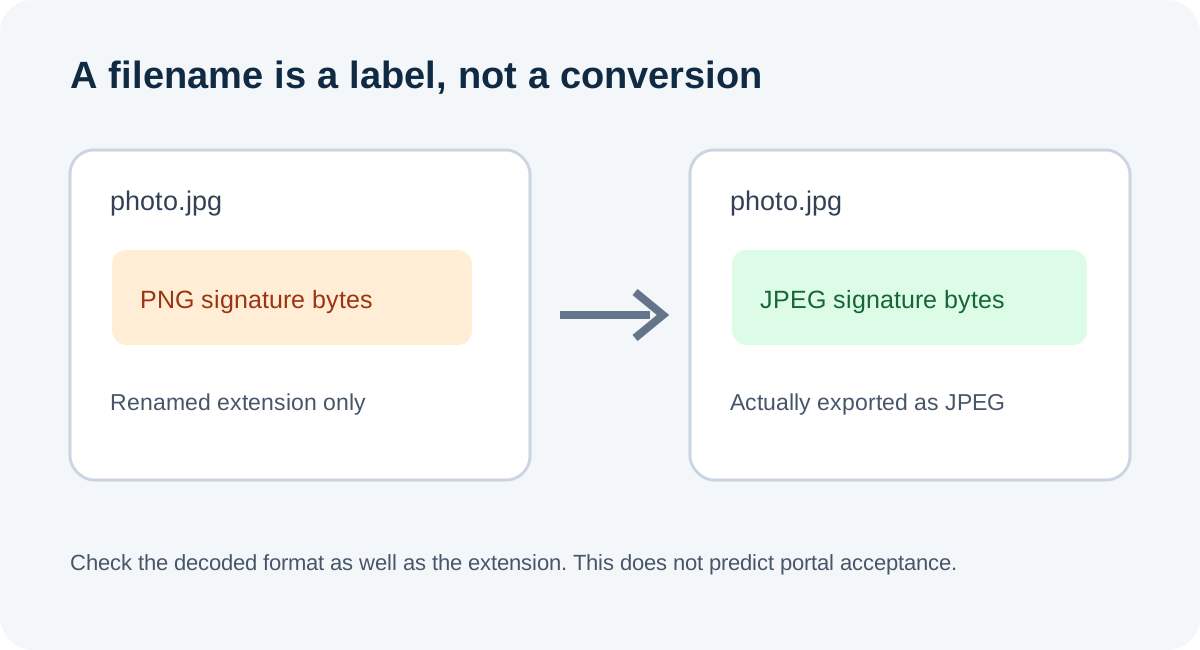
Why the ending can mislead
File names are labels used by people and software; they do not rewrite a file’s contents. Renaming portrait.png to portrait.jpg leaves the PNG image data in place. That can create a mismatch between the visible suffix, the data’s real encoding, and the MIME type a program or upload control associates with it. A mismatch may confuse a workflow, but the public ERAS instructions do not say that this specific mismatch causes a particular portal error.
The supported-format lists are route-specific. AAMC’s direct-MyERAS photo instructions list JPG/JPEG or PNG. ECFMG’s MyIntealth instructions for IMG residency applicants list JPEG. AAMC also says IMG applicants use ECFMG for photo submission. These public pages identify allowed formats; they do not document every hidden upload validation check.
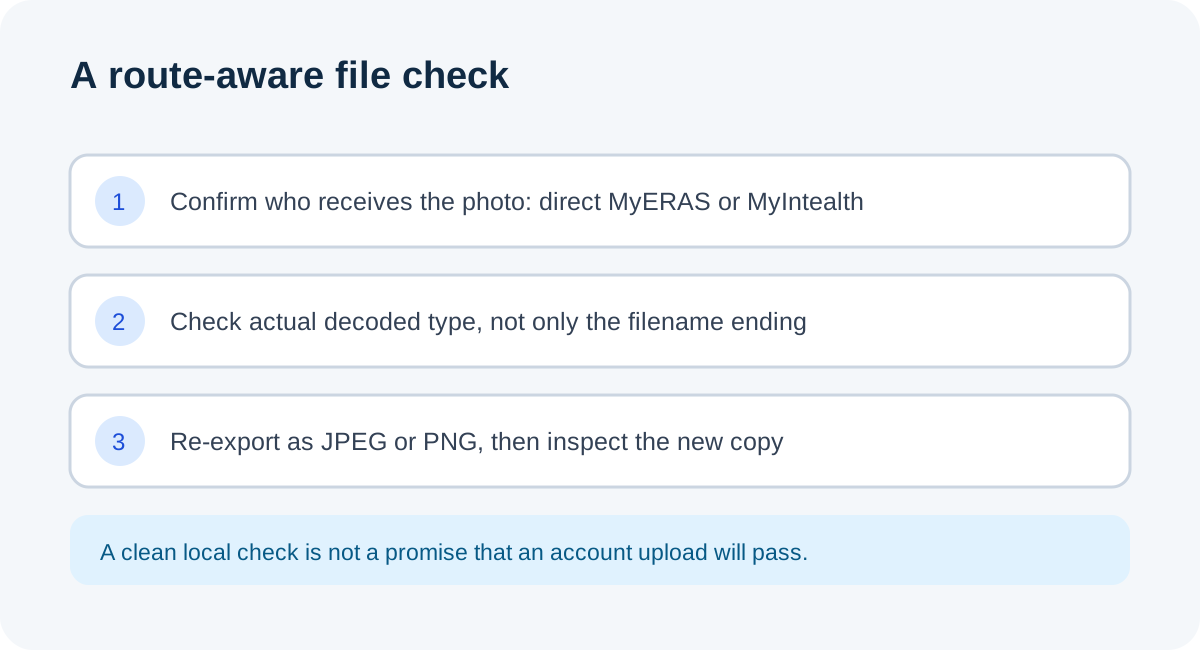
A reproducible check before choosing a file
Use this sequence to tell a naming mismatch from a genuine export. It is a local file check, not a MyERAS or MyIntealth upload test:
- Identify the receiving portal. Direct MyERAS, MyIntealth for an IMG residency applicant, and EFDO for a fellowship photo are separate paths. Open the current photo instructions for that route.
- Show file extensions. In Windows File Explorer, turn on View → Show → File name extensions. Read the full name, but treat it as a clue rather than proof.
- Inspect the actual file type. Use a trusted image viewer or editor that reports the decoded format. If it calls the file PNG while the name ends in .jpg, the name and encoding disagree.
- Export instead of renaming. Open the source in an image editor and use Export or Save As to create a fresh JPEG or PNG. Keep the untouched original in a separate folder.
- Reopen the exported copy. Confirm that the viewer identifies the expected format and that the file opens. Then compare the copy with the route’s current file-size and any stated dimension limits.
- Use the portal’s own result. A local viewer cannot prove that an account upload succeeded. Save the exact status message; use the matching route’s support instructions if it remains unclear.
This order separates four observations: what the name says, what the image decoder reads, whether a new export opens, and what the account portal reports. Do not collapse them into one “valid” label.
Small test: renaming versus exporting
I created two person-free sample files from the same simple test image. The first was encoded as PNG and named sample.png. I copied the exact bytes to sample-renamed.jpg without conversion. A file-signature check read the PNG signature from both files. That means the suffix changed while the encoded format did not.
Then I opened the original in an image editor and exported a JPEG copy. The exported file began with the JPEG signature and decoded as JPEG. This test establishes only what happened to these generated local samples. It contains no applicant photo and did not access either application portal. Results do not establish how a portal responds to a mislabeled file.
The practical distinction is simple: renaming changes the label; exporting through an image encoder creates new image data. After export, check the actual copy again because saving the wrong file or exporting to a different location can leave the intended upload copy unchanged.
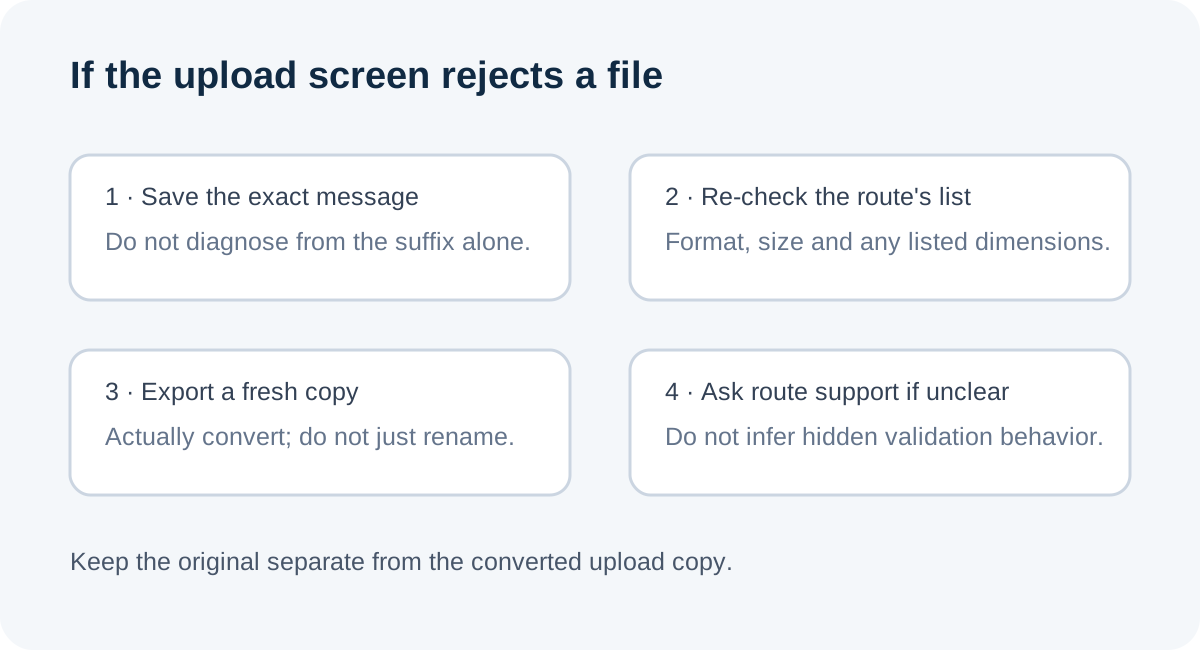
Questions people ask
Will adding .jpg to a PNG make it a JPEG?
No. It changes the filename only. Use an image editor’s export function to encode a JPEG copy.
Does this prove the ERAS portal rejects a renamed file?
No. The local sample test checks file bytes and decoding only. The reviewed public instructions do not specify the portal’s exact response to a suffix/encoding mismatch.
What if the file is correctly exported but still does not upload?
Check the exact route, format, size, and dimensions listed in its current instructions. Preserve the portal’s exact error or status wording. An unrelated route’s size rule or another applicant’s experience cannot establish what happened in your account.
Can the site’s photo checker guarantee acceptance?
No. A checker can inspect file properties. It cannot access your application account or verify its current server-side rules. Use the portal’s result as the record of upload status.
Watch the file-format walkthrough
This companion video uses the same three original diagrams and a synthetic English narration. It shows the local sample test and explains what that test cannot establish about portal acceptance.
Sources and scope
- AAMC, Photo — direct-MyERAS route lists JPG/JPEG or PNG, 150 KB maximum, centered face; assigns IMG upload responsibility to ECFMG and fellowship upload to EFDO.
- ECFMG, ERAS Supporting Documents — Photograph — MyIntealth route for IMG residency applicants; lists JPEG and a 150 KB maximum, with route-specific dimensions and upload status instructions.
- r/IMGreddit, “ERAS photo” (September 24, 2026): an applicant says they worked to get the format accepted and asks about a missing confirmation; used only as a workflow question, not policy evidence. — used only as a signal that applicants ask about what an image preview represents, not as evidence of ERAS file-format rules.
Official sources checked October 30, 2026. Public instructions do not document every encoding or server-side validation behavior. The test used generated local image data only; no applicant photo or portal account was accessed. Residency Headshot is independent and not affiliated with AAMC, ECFMG, Intealth, or ERAS Support Services.