ERAS HEADSHOT / JPEG ORIENTATION
Why can an ERAS headshot look rotated in a preview?
A rotated-looking copy can come from EXIF orientation metadata, but that does not prove how MyERAS or MyIntealth processed your upload. Compare the untouched file with an EXIF-aware view and a physically upright export, then check the current instructions for your route. Public ERAS photo pages do not document how every preview handles orientation metadata.
What the orientation tag does—and does not prove
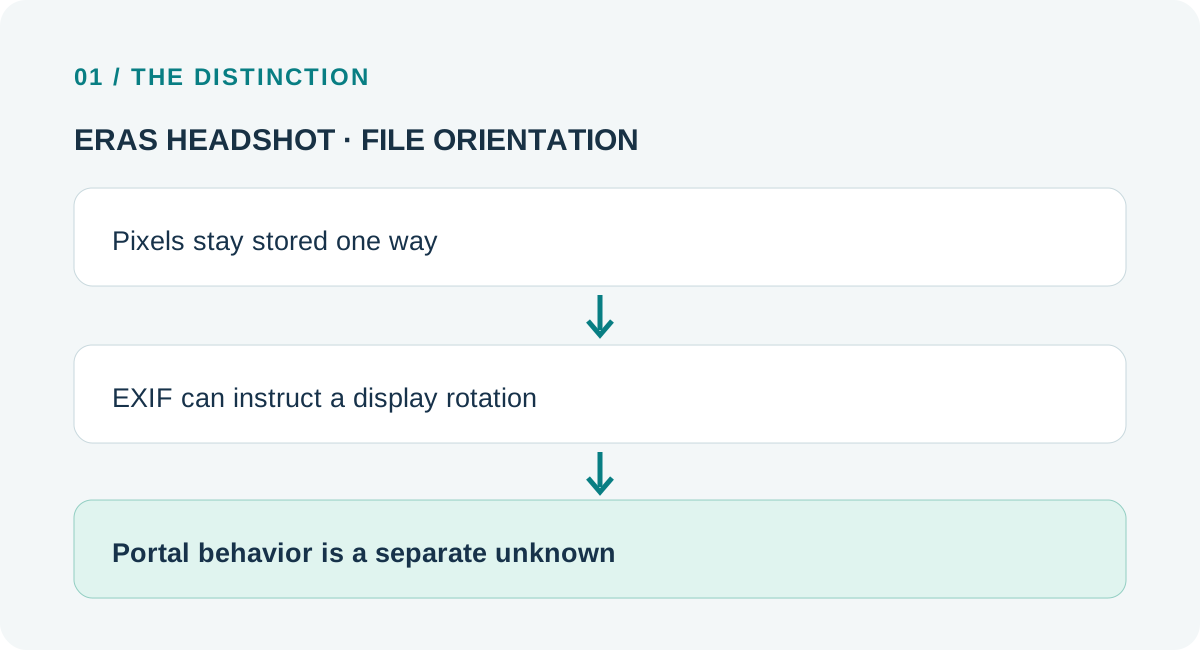
A JPEG can contain a stored pixel matrix plus metadata that tells a compatible viewer how to orient it. The current CIPA Exif standard lists Exif 3.1, and its earlier public specifications define the Orientation field as information about mapping stored image rows and columns to display orientation. MDN describes the browser CSS default as using the image’s Exif information to rotate it appropriately. In practical terms, two apps can render the same encoded pixels differently if one applies the orientation instruction and another ignores or strips it.
That possibility is not the same as an ERAS finding. The AAMC photo page lists JPG/JPEG or PNG, a maximum file size, and a centered face for direct MyERAS. ECFMG lists JPEG and separate MyIntealth specifications for IMG applicants. Neither public photo page says whether a portal preview honors, removes, or rewrites EXIF orientation. This page has not accessed an applicant account, submitted a photo, or tested any ERAS screen.
A useful distinction is: stored orientation describes the encoded pixels; display orientation is what a particular decoder shows; portal rendering is a separate behavior that must not be inferred from a desktop viewer.
A reproducible three-file orientation test
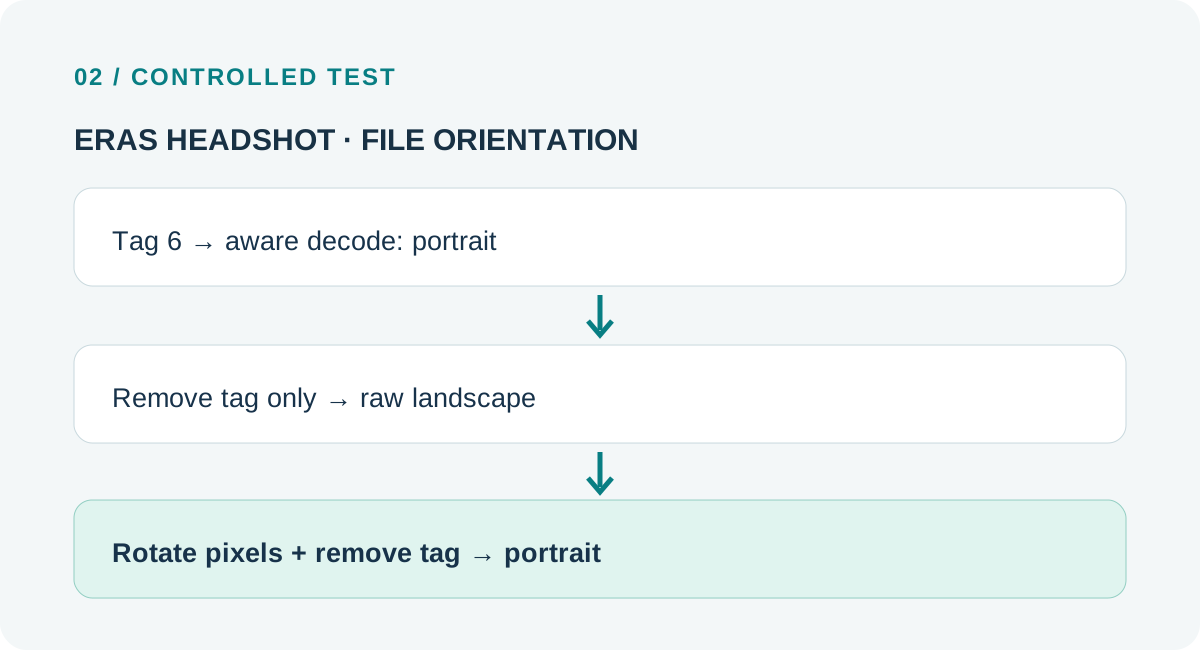
I generated a person-free asymmetric calibration image with clear top, bottom, left, and right labels, saved one JPEG with Orientation=6, re-exported its decoded landscape raster without carrying the orientation tag, and made a physically upright export by applying the tag before saving. The test then recorded file bytes, stored pixel dimensions, the tag value, and dimensions after Pillow’s EXIF-aware transpose operation. It is a file-level experiment, not a portal test.
| Variant | Stored pixels | Orientation tag | EXIF-aware decoded dimensions |
|---|---|---|---|
| Tagged source | 700 × 500 | 6 | 500 × 700 |
| Tag removed, landscape raster retained | 700 × 500 | None | 700 × 500 |
| Physically upright export | 500 × 700 | None | 500 × 700 |
These are measurements of the three generated files in the attached bundle. The important result is structural: deleting a rotation instruction is not equivalent to applying that rotation to pixel data. The test does not measure image quality, acceptance, or any behavior of MyERAS, MyIntealth, or a residency program.
Download the three synthetic files and reproduction script; exact byte counts and SHA-256 hashes are in the measurements file and the included bundle.
A route-first check when the image looks wrong
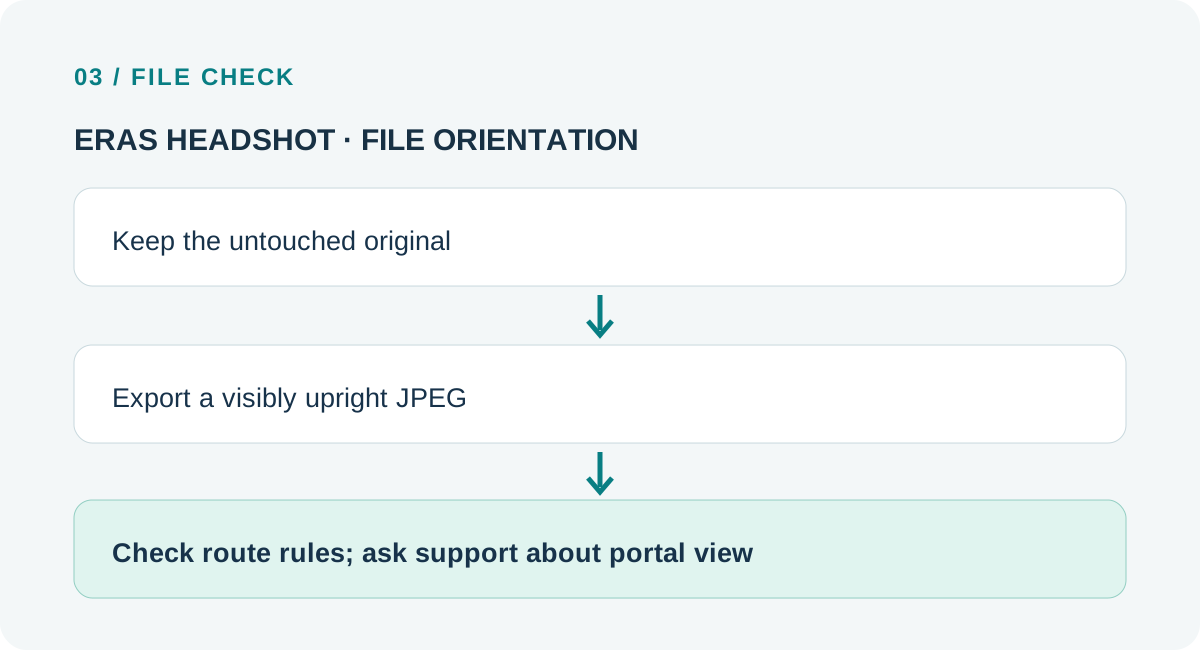
- Keep the original unchanged. Make a copy before rotating or re-exporting. The original lets you compare file bytes and metadata if the display changes.
- Check the whole image in an EXIF-aware viewer. If the viewer shows the full image upright, that confirms only how that viewer interprets the file.
- Make a physically upright copy. Use an editor’s “apply orientation” or “auto-orient” export, then reopen the exported file in a second viewer. Do not merely remove the metadata tag.
- Recheck route-specific file rules. AAMC lists JPG/JPEG or PNG for direct MyERAS; ECFMG’s MyIntealth route specifies JPEG. Check current official instructions before upload.
- Describe the portal symptom precisely. Record the screen, whether the original file is correct, and whether the upload itself completed. Ask the relevant support route whether its view applies orientation metadata; public pages do not establish that behavior.
This workflow separates a local file transformation from an undocumented portal rendering. It does not tell an applicant which photo to choose or predict that a file will be accepted.
Common questions
Does an EXIF Orientation value mean the JPEG pixels are already rotated?
Not necessarily. In the test, Orientation=6 accompanied 700 × 500 stored pixels; an EXIF-aware transform presented them as 500 × 700. A tagless re-export of the decoded landscape raster remained 700 × 500.
Does a correct view in Photos prove ERAS will show it correctly?
No. It proves how that viewer rendered the file. The AAMC and ECFMG public photo instructions reviewed here do not specify how every portal preview handles the orientation field.
Should I upload a square photo because a preview is round?
Do not infer a file shape from an interface crop. Follow the current requirements for the route used and ask support about a specific preview. A recent applicant discussion documents uncertainty about a cropped circular preview, but comments are not official guidance.
Sources and scope
- CIPA DC-X010-2017 — maps the Orientation field and values in its Exif-to-XMP specification; it is an older mapping reference.
- CIPA Standards — lists the current Exif Version 3.1 standard.
- MDN, image-orientation — documents the default `from-image` behavior and the use of Exif information by browsers.
- AAMC, Photo — current direct MyERAS photo submission requirements.
- ECFMG, ERAS Supporting Documents: Photograph — current MyIntealth photo requirements and upload route.
- Applicant question, “Need confirmation on this ERAS photo upload…” — a recent question about a circular crop and whether a preview matches another view; it is a question signal, not evidence about EXIF or portal behavior.
Sources checked October 9, 2026. The synthetic experiment is limited to the included files and decoder operation. No MyERAS, MyIntealth, or program-facing account was accessed. Residency Headshot is independent and is not affiliated with AAMC, ECFMG, Intealth, or ERAS Support Services.