ERAS HEADSHOT / COLOR PROFILE
Why does an ERAS headshot look gray after upload?
A gray or dull-looking preview can come from a color-profile or export mismatch, but public ERAS instructions do not say how the portal interprets embedded profiles. A controlled Display P3-to-sRGB test changed saturated colors when the same channel numbers were treated as sRGB, while its neutral-gray control stayed unchanged. Compare the original and exported file in more than one color-managed viewer before blaming the portal; this test does not reproduce MyERAS or MyIntealth.
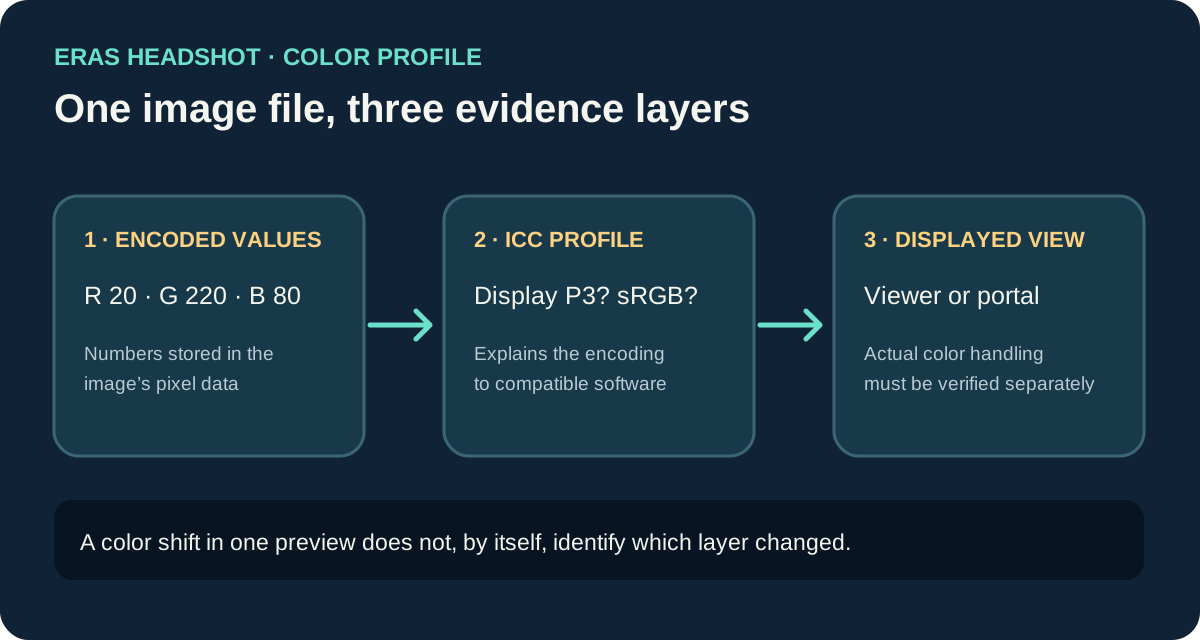
What a color profile can—and cannot—explain
An image stores channel values such as red, green, and blue. An embedded ICC profile describes the color encoding those values use, so a color-managed application can translate them for another display space. The International Color Consortium documents profile embedding for both JPEG and PNG. Its registry describes Display P3 as a wide-gamut RGB encoding, while sRGB is a separate encoding used for web-oriented workflows.
If a P3 image loses its profile and another app reads its numbers as sRGB, saturated colors can shift. But that mechanism does not prove an application upload caused the shift. AAMC’s public photo instructions cover its application route and photo-file requirements; the page does not specify how an uploaded image’s ICC profile is processed in each preview. This article did not access an applicant account or upload a test image to ERAS.
“Gray” also describes more than one symptom. A color-profile mismatch can alter chromatic areas, but the neutral 128/128/128 patch in our test stayed neutral. If a face, gray background, and other neutral areas all become flat, the cause could instead involve an export adjustment, display setting, compression/transcoding, or a different viewer. A single screenshot cannot identify which one occurred.
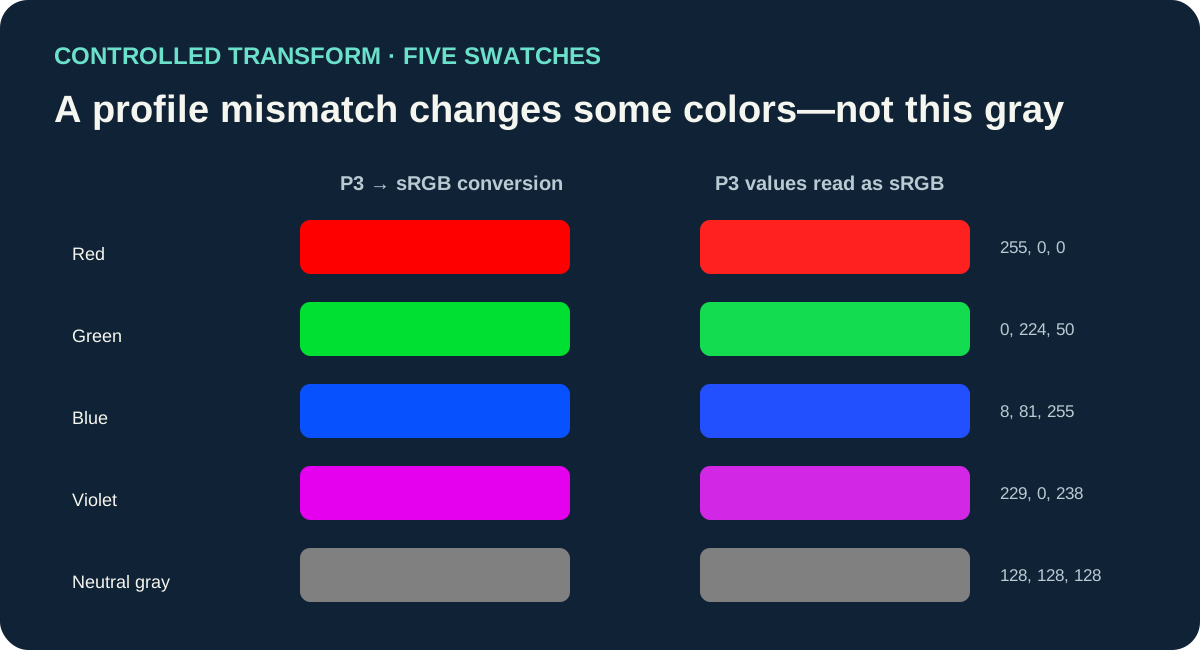
A five-swatch profile-interpretation test
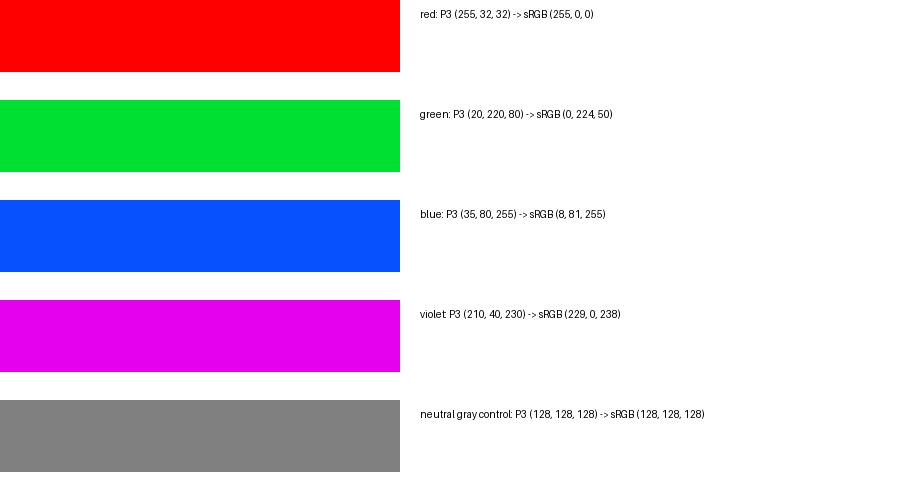
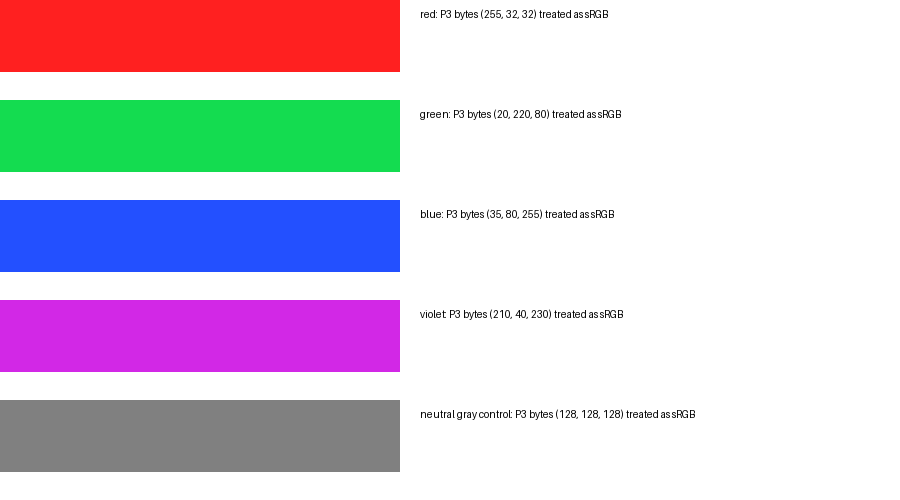
To separate a color-encoding effect from portal behavior, we made five synthetic Display P3 swatches: red, green, blue, violet, and neutral gray. We transformed one copy from the ICC’s Display P3 profile to sRGB with Pillow/ImageCms and LittleCMS using relative-colorimetric intent. We compared those output channel values with the original P3 numbers read as if they were sRGB. Both PNGs contain the same swatch layout; neither contains a portrait.
| Swatch | Display P3 input | Converted to sRGB | P3 values read as sRGB |
|---|---|---|---|
| Red | 255, 32, 32 | 255, 0, 0 | 255, 32, 32 |
| Green | 20, 220, 80 | 0, 224, 50 | 20, 220, 80 |
| Blue | 35, 80, 255 | 8, 81, 255 | 35, 80, 255 |
| Violet | 210, 40, 230 | 229, 0, 238 | 210, 40, 230 |
| Neutral gray control | 128, 128, 128 | 128, 128, 128 | 128, 128, 128 |
The measurements show that a profile-aware conversion changes the RGB triplets for the four saturated test colors; the neutral control remains identical. They demonstrate what a profile interpretation mismatch can do in this synthetic transform. They do not establish that any MyERAS or MyIntealth screen strips a profile, adds gray, or uses the same rendering path.
Open the converted sRGB swatches · Open the same P3 values treated as sRGB · Open the neutral control. The measurements and SHA-256 values and reproduction bundle document the files and transformation.

A check that separates the file from the portal
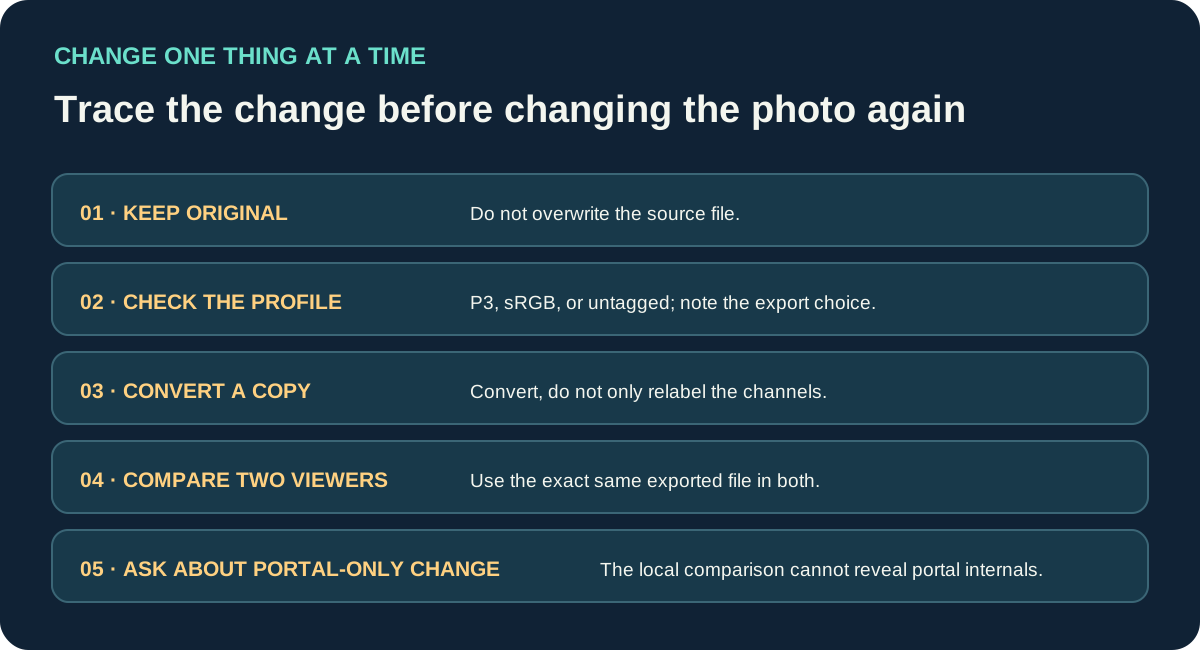
- Keep the source untouched. Make a copy for every export. A source copy lets you tell whether the color changed before upload or only after a particular display step.
- Check the profile and export settings. In an image editor, note whether the source is tagged Display P3, sRGB, or untagged, and whether export embeds, converts, or removes the profile. “Assign profile” and “convert to profile” are different operations; do not use them interchangeably.
- Make one controlled sRGB export. Convert a copy to sRGB in the editor, rather than just relabeling its existing channel values. Reopen that exported file in a second color-managed viewer and compare neutral and saturated areas.
- Compare the exact same file. If both desktop viewers show the same export consistently but the portal preview differs, keep the source and export copies and record which screen changed. A screenshot by itself may add display, capture, or compression effects.
- Ask about the specific route. Follow the current AAMC or ECFMG instructions for the account you use. If only the portal preview differs, ask that support team whether the preview applies or converts the embedded profile. Do not infer the program-facing display from an undocumented screen.
This is a diagnostic sequence, not a promise that sRGB will fix every gray-looking upload. It narrows down whether a profile-aware export changes the local file before an application portal is involved.
Common questions
Will exporting as sRGB always fix a gray ERAS headshot?
No. A forum applicant reported that an sRGB export looked brighter in their own upload, but that is one account and does not establish what caused it or how current portals handle color profiles. The controlled test above supports a narrower point: profile interpretation can alter some channel values; neutral gray did not change in this test.
Can an ICC profile be embedded in a JPEG?
Yes. The ICC’s embedding guidance says JPEG profile embedding is covered by Annex B of its specification. Whether a particular application uses or changes that profile is a separate question.
Does a gray portal thumbnail prove the uploaded file is gray?
No. Compare the exported file itself in a second viewer. The public AAMC photo instructions do not describe the color behavior of every applicant preview, so a local file comparison cannot settle an account-specific portal question.
Watch the color-profile explainer
This video explains the synthetic Display P3-to-sRGB swatch test and its limits. It does not test MyERAS or MyIntealth. English narration and English subtitles are available.
Watch Why Does an ERAS Headshot Look Gray After Upload? on YouTube
Sources and scope
- International Color Consortium, Embedding ICC profiles in image file formats — JPEG and PNG profile-embedding references.
- ICC Three Component Color Encoding Registry, Display P3 — Display P3 encoding information and profile source used in the local transform test.
- ICC Profile Viewing and Testing Resource Center — profile-library licensing note and resource scope.
- AAMC, Photo — current public photo instructions reviewed; no portal ICC-handling statement was found on this page.
- Applicant discussion, “ERAS photo grayed out?” — a 2022 first-person report and follow-up about an sRGB export; anecdotal, not an official specification or controlled portal test.
Sources checked October 14, 2026. The test used synthetic RGB swatches and did not use a human photograph or an ERAS account. No MyERAS, MyIntealth, or residency program display was tested. Residency Headshot is independent and is not affiliated with AAMC, ECFMG, Intealth, or ERAS Support Services.